How to Declutter a Crowded Mac Dock Without Deleting Apps
Published · 6 min read
A Dock with thirty icons is not a launcher. It is a scavenger hunt. Magnification kicks in, labels overlap, and the app you want sits three icons past the one that looks the same. Decluttering does not mean throwing tools away. It means a short Apple Dock for the system, and short second docks for each job—shown only when that job is on.
Why the Dock fills up
Every install offers “Keep in Dock.” Over a year you say yes for Slack, Figma, Xcode, Zoom, Notion, three browsers, and a PDF reader you used once. macOS still gives you one Dock. Unrelated jobs share one row, so the strip grows until scanning it costs more time than Spotlight.
People who code, design, and take calls on the same Mac feel this first. The fix is not a longer Dock. It is fewer icons in view at once. The task layout for that desk is code, design, and calls.
Step 1: Thin Apple’s Dock on purpose
- Right-click (or Control-click) an icon you have not opened this week → Options → Remove from Dock. The app stays installed.
- Leave a short system row: Finder, System Settings, and two or three apps you open no matter the task.
- Turn off “Keep in Dock” habits. Open rare apps from Spotlight (Command-Space) instead of pinning “just in case.”
Aim for under a dozen pinned icons on Apple’s Dock. If the bottom edge still feels busy, auto-hide that Dock and keep a short second strip for the current job.
Step 2: Give each job its own short dock
Unpinning alone fails when you still need those apps every day—just not all at once. Move them onto separate docks:
- Build — editor, Terminal, Git, docs browser.
- Design — Figma or Photoshop, reference browser, file shelf for exports.
- Call — Calendar, Zoom or Meet, Slack. Hidden during deep work.
Six to eight icons per dock. Vertical on the side if the bottom is crowded. Floating if the apps should sit next to the window. Full pattern: specialized docks for each task.
Step 3: Hide the docks you are not using
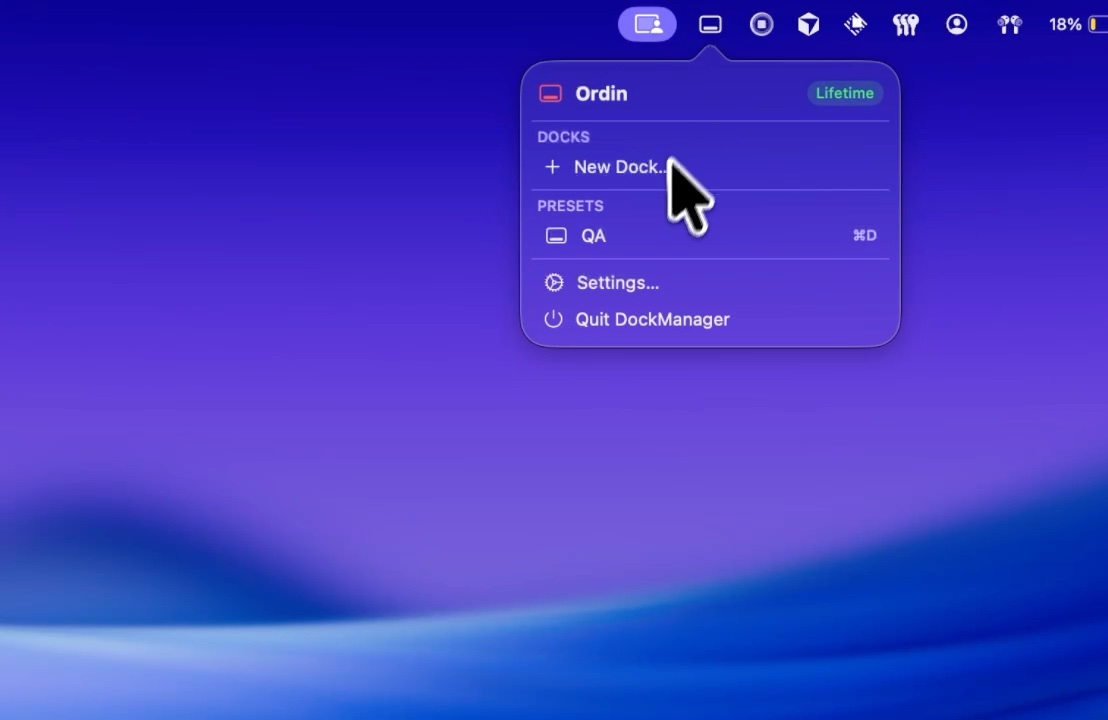
A declutter that leaves five full docks on screen is not decluttered. Save presets—Deep work shows Build (and Design if needed); Meeting shows Call—and switch with a hotkey. Details: presets and hotkeys.
On a dual-monitor desk, put the job dock on the display you look at so you are not hunting a Dock that jumped to the laptop.
What decluttering is not
- Not uninstalling. Unpin ≠ delete.
- Not replacing Apple’s Dock. Ordin adds bars beside it.
- Not one giant “extras” dock. That recreates the pile with a different name.
Try the thin layout for two days
- Download Ordin (macOS 13+, no account for the trial).
- Unpin Apple’s Dock down to a short system row.
- Create one or two job docks. Pin only yesterday’s apps.
- If scanning gets faster and you stop “just in case” pinning, keep it. After the trial, two docks remain without a license; presets need $12.99 once. Checklist: buy after the free trial.
Thin the Dock. Keep the apps on short strips you can hide. 2-day trial, no account. $12.99 once if you keep the layout.
Download for MacOr pay $12.99 if you already know you want it.
FAQ
How do I declutter the Mac Dock?
Unpin rarely used apps from Apple’s Dock, keep a short system row, and move job apps onto short second docks you show with a preset.
Does Remove from Dock delete the app?
No. The app stays in Applications and Spotlight.
How many Dock icons is too many?
If you need magnification to find anything, it is too many. Under a dozen on Apple’s Dock is a solid target; job tools belong on other short docks.
Who is this for?
People whose Dock mixes every install from the last year—especially freelancers who code, design, and take calls on one Mac. If your Dock is already short and sits where you look, you may not need a second one.
Related: Specialized docks for each task · Code, design, and calls · One Dock is a bottleneck