How to Auto-Hide the Mac Dock Without Losing Your Apps
Published · 5 min read
Auto-hide gives you the full edge of the screen. It also removes the only set of Dock icons until you hunt for that edge with the pointer. If you want the empty margin and a short strip of apps that stays put, you need a second dock. Apple’s Dock can stay auto-hidden. The apps for the job you are in sit on another edge.
What auto-hide actually does
In System Settings → Desktop & Dock, Automatically hide and show the Dock applies to the one Dock that ships with macOS. When it is on, that bar slides away. Move the pointer into its edge and it comes back. There is no second pin list in System Settings. Hiding the Dock does not split icons across monitors, and it does not leave a backup strip on the side.
That is the trade-off people feel in video, design, and writing: the bottom edge is free, then the apps are gone until you remember which edge still owns the Dock. On a laptop plus an external display, the Dock may also be on the other screen when the pointer last called it there. The guide for that desk is a dock on your external monitor.
Keep a short dock while Apple’s hides
Ordin adds another dock. It does not replace Apple’s. A practical layout:
- Apple’s Dock: turn on Automatically hide and show. Leave it on the bottom, or move it if you prefer. Treat it as the long system list you open when you need it.
- Ordin dock: pin three to eight apps for the current job. Put it on the left or right, or float it near the window. Leave auto-hide off on that dock so the icons stay in view.
- Optional: mirror Apple’s pins onto the Ordin dock with a Live Dock widget if you want the same apps on two edges. That setup is a live dock mirror on every Mac screen.
You get the empty bottom edge for the window, and a stable side strip for launch and switch. A vertical strip while Apple’s Dock stays on the bottom is covered in a vertical dock on a Mac.
Auto-hide vs hide on fullscreen
They solve different moments:
- System auto-hide — the Dock is off the edge until the pointer hits it, for every window.
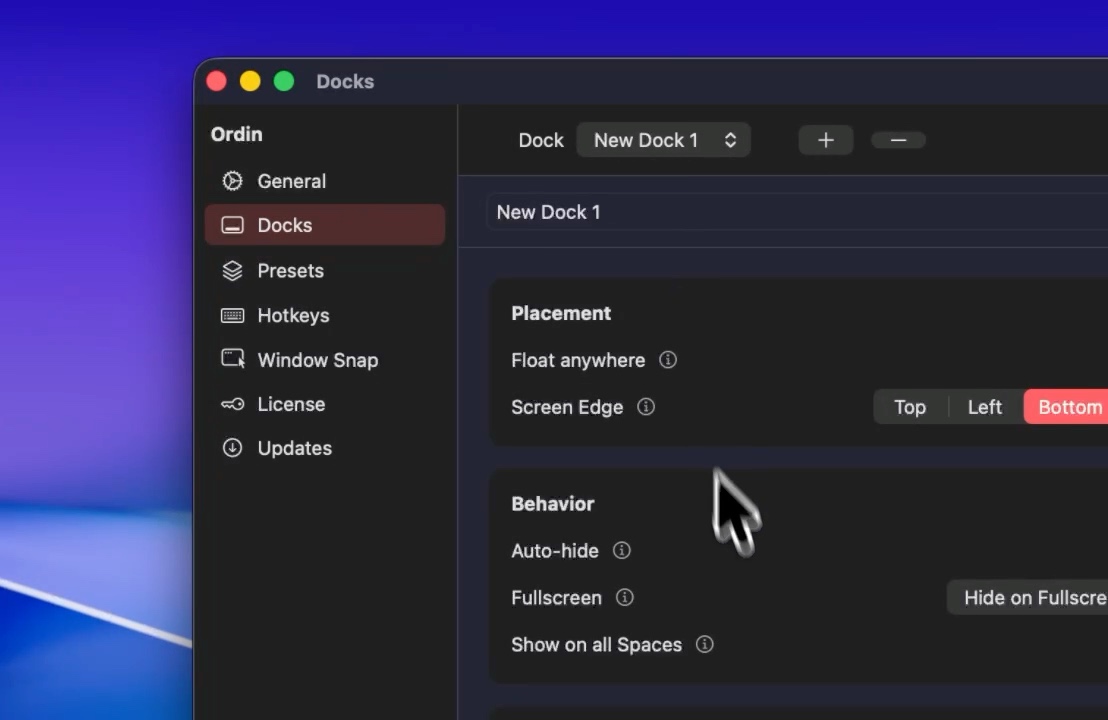
- Hide on Fullscreen (Ordin) — that one dock leaves when a window goes fullscreen, and can return when you exit. It does not replace System Settings’ auto-hide.
Many people use both. Apple’s Dock auto-hides all day. An Ordin dock stays visible in normal windows, then tucks away for a fullscreen edit or slide. The fullscreen note is hide the dock when a Mac window goes fullscreen.
How to set it up
The 2-day trial includes extra docks. No account.
- In System Settings → Desktop & Dock, turn on Automatically hide and show the Dock.
- Download Ordin and drag it to Applications. macOS 13 or later, Apple silicon or Intel.
- Add a dock from the menu bar extra. Pin only the apps for the job you are in.
- Place that dock on a side edge, or float it. Leave its own hide-on-edge off if you want the icons always visible.
- If fullscreen covers it later, enable Hide on Fullscreen for that dock alone.
After the trial, two docks remain without a license. A larger set and presets need the $12.99 lifetime key for this Mac. If you are deciding whether to pay, use the buy-after-trial checklist.
Hide Apple’s Dock. Keep a short second strip for the apps you still need. 2-day trial, no account. $12.99 once if you keep it.
Download for MacOr pay $12.99 if you already know you want it.
FAQ
What does Automatically hide and show the Dock do?
It tucks Apple’s one Dock off the edge until the pointer hits that edge. It does not create another dock.
Can I auto-hide the Mac Dock and still see my apps?
Yes, with a second dock that stays visible. Ordin adds that bar. Apple’s Dock can remain auto-hidden.
Does auto-hide give me a Dock on every monitor?
No. macOS still has one Dock. For a bar on each display, see an extra dock on every monitor.
Is this the same as hide on fullscreen?
No. Auto-hide is a system setting for the pointer and the edge. Hide on fullscreen is a per-dock option for fullscreen windows.
Related: Hide the dock in fullscreen · A vertical dock on a Mac · Can a Mac have more than one Dock?