A Vertical Dock on a Mac, Without Moving Apple’s
Published · 6 min read
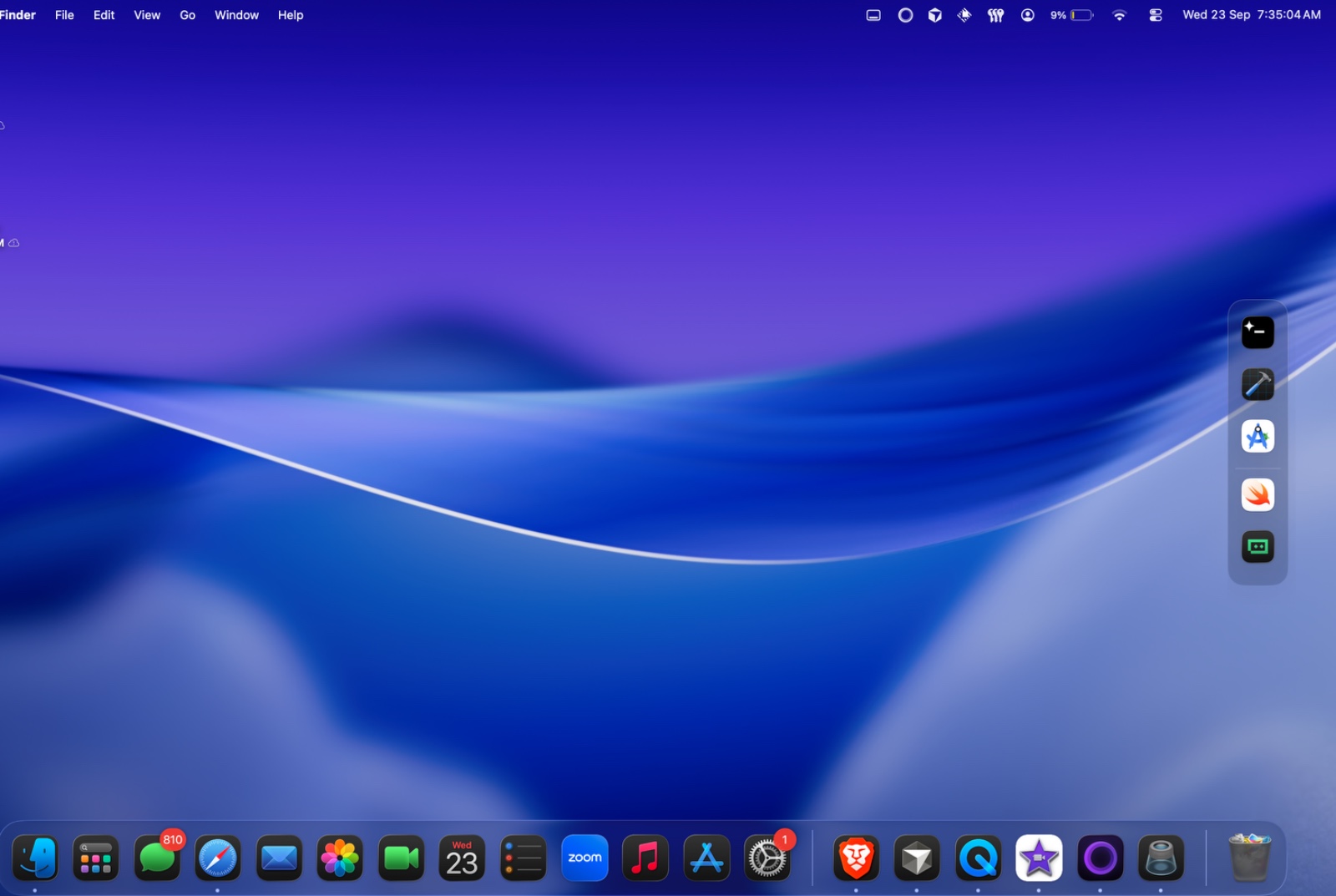
A vertical dock on a Mac is a tall strip of icons on the left or right edge. macOS can move its one Dock there, and then the bottom of the screen is empty and the icons are still the same set. Ordin draws a second dock, vertical, on the side you choose. Apple’s Dock can stay on the bottom.
What happens if you move the Mac Dock to the side?
System Settings → Desktop & Dock offers left, bottom, and right. There is no top. Pick left or right and that single Dock becomes vertical. Hide and show still applies to it. On more than one display it can follow the pointer, and it is still one set of icons. The full version of that limit is can a Mac have more than one Dock.
People move it because a wide screen has spare room on the side and none on the bottom, or because a portrait monitor is taller than it is wide. The cost is the bottom edge. Menu bar apps, the Trash, and the muscle memory of a bottom Dock all move with it.
| Move Apple’s Dock to the side | Add an Ordin dock on the side | |
|---|---|---|
| Bottom edge | Empty. The Dock left. | Apple’s Dock can stay. |
| Icons | The same set, turned vertical. | A short set for that edge or that job. |
| Top edge | Not a position for the system Dock. | An Ordin dock can sit there, or float. |
When a vertical dock is the right shape
Use a vertical strip when the screen is tall, or when the bottom is already taken by Apple’s Dock and the work on that display wants its own apps.
- Portrait monitor. A bottom dock eats the short dimension. A vertical dock uses the long one and leaves the width for the page or the canvas.
- Ultrawide or external display. Apple’s Dock stays on the laptop. A vertical dock on the big screen holds the apps you open there. Placement across displays is in a dock on the external monitor and a dock on every monitor.
- A job with a known order. Editor, terminal, browser, stacked. You hit them by position. Magnification can stay off, because you are not glancing, you are reaching. A call dock or a design dock can stay horizontal. The library of those jobs is specialized docks for each task.
If the dock belongs next to a window rather than an edge, float it. A vertical dock is the edge case: left or right, a column, short on purpose. Six to ten icons. A vertical dock that lists every app on the Mac is the crowded Dock again, turned sideways.
How to add a vertical dock
The 2-day trial includes this. It does not ask for an account. The Mac needs macOS 13 or later. Apple silicon and Intel use the same disk image.
- Download Ordin, open the disk image, and drag the app to Applications.
- Add a dock from the menu bar extra.
- Set it vertical and pin it to the left or right edge of the screen where that work happens. Leave Apple’s Dock on the bottom.
- Drag on only that column’s apps. Stop while you can still see each icon without scrolling the idea of the dock in your head.
- Set icon size and spacing for a column you use by position. Larger icons if you glance at it. Smaller if it is a tool strip beside a full-height window.
Hover an icon for live thumbnails of that app’s open windows. Those previews work on the vertical dock and on Apple’s Dock.
What stays after the trial?
During the two days you can build more than one extra dock, including a vertical one and a horizontal one, and presets that show the set you need. After the trial, without a license, two docks remain and presets stop. A license is $12.99 once for this Mac and keeps the larger set. Payment is optional during the trial. Paste the key into Settings → License. The terms cover that purchase.
Put a vertical dock on the side during the trial. 2 days, no account. Apple’s Dock stays on the bottom.
Download for MacRelated: Can a Mac have more than one Dock? · A dock on the external monitor · Is a second dock worth $12.99?