5–10 Specialized Docks for Different Tasks
Published · 8 min read
A single Dock gets worse as your work splits. Coding, design, calls, and review do not want the same icons. Ordin is for that desk: several short docks, each built for one job, each styled on its own, with a preset that shows only the set you need right now.
Ten docks on screen at once is the wrong goal
People who ask for five or ten docks usually want five or ten jobs to have a home. They do not want ten bars crowding every display all day. The useful setup is a library of specialized docks, and a way to reveal two or three of them when that work starts.
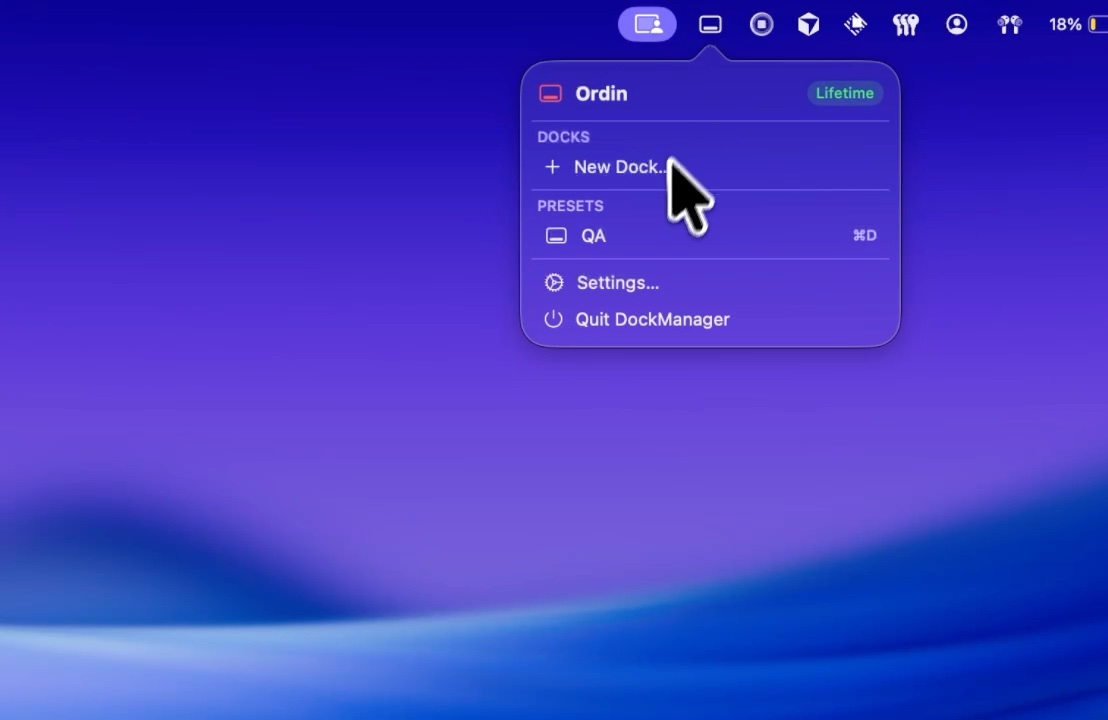
That is what a preset is. It remembers which docks are visible. “Build” shows the code dock and the browser dock. “Call” hides those and shows the meeting dock. You are not rearranging icons. You are swapping which strips exist. Hotkeys and the menu bar both do the switch. The shorter note is presets and hotkeys.
During the 2-day trial you can build the whole library. A license is what keeps a large set after the trial. Without one, two docks still work and the presets stop. If your plan is a stack of task docks, try the full layout in those two days and keep the license if you still want it.
One dock per job, not one dock per app
A specialized dock is short on purpose. Six to ten icons for one kind of work. Here is a library that covers most mixed desks. You will not use every row every day. That is the point.
- Code. Xcode or your editor, Terminal, Git, and the one browser you use for docs. Vertical, on the display where the editor sits.
- Research. Browser, notes, and a shelf widget for the files you are reading. Separate from Code so a writing day does not inherit the toolchain.
- Design. Figma or Photoshop, a reference browser, and the folder you export into. Larger icons. This dock can float near the canvas instead of hugging an edge.
- Review. The preview app, mail, and a notes app. Used when you are marking work, not making it.
- Calls. Calendar, the meeting app, and a clock widget. Horizontal, on the screen that holds the call window, so you are not hunting the laptop.
- Chat. Slack or Messages, and nothing else. Easy to hide when you want a quiet hour.
- Files. Finder and a shelf. A place to drop things you are moving between apps, instead of a Desktop covered in downloads.
- Ship. The tools for a release afternoon: browser, notes, and the app you are checking. A preset, not a permanent resident.
Eight docks in the library. A normal hour shows two. A heavy hour shows three. Apple’s Dock can stay as the short row of things you open no matter the task.
Presets that match the day
- Build: Code and Research. Chat hidden.
- Design: Design and Files. Code hidden, even if that monitor is still connected.
- Call: Calls and Chat. Everything else tucked away so the meeting screen is not a launcher.
- Review: Review and Files.
- Travel: one floating dock, for the laptop with no external display. The desk presets come back when the monitors do.
Name them for the work, not for the monitor. “Left screen” rots the day you move the laptop. “Build” still means the same apps.
Make each dock look like its job
Customization in Ordin is per dock, not one theme for the whole Mac. The code dock and the call dock should not match, or you will not know which bar you are reaching for.
- Size and spacing. Small, tight icons for a tool dock you already know by position. Larger icons for a dock you glance at during a call.
- Magnification. On for the dock you share with a pointer. Off for a vertical strip you use by muscle memory.
- Edge and direction. Vertical on a wide coding display. Bottom on the meeting display. Floating when the dock belongs to a canvas, not a screen edge.
- Background. Solid, Transparent, or Liquid Glass, plus a tint. A quiet glass dock for calls. A darker solid dock for code, so it reads as a different object.
- Widgets in the row. A clock on Calls. A shelf on Files. A mirror of Apple’s Dock on a monitor that would otherwise have no system Dock. Those sit between the app icons, on that dock only. What each one does is in widgets in a Mac dock.
Settings → Docks is where each strip gets its own size, spacing, magnification, tint, and background. This is workflow customization: the dock changes with the job. It is not a pack of replacement icons for every app on the Mac. If you need a custom picture on each app icon, that is a different product. ExtraDock documents per-app icons; the comparison is on Ordin vs ExtraDock.
Put it together
- List the jobs, not the apps. Five to ten is enough. More than that usually means two jobs got merged into one name, or one job got split too far.
- Create one dock per job from the Ordin menu bar. Pin it to the screen where that work happens. The per-monitor guide covers placement. A laptop plus one display is the external monitor setup.
- Drag on only that job’s apps. Stop while the row is still short.
- Style it so you can tell it from the others without reading labels.
- Save presets for Build, Design, Call, Review, and Travel. Assign a hotkey to the two you use most.
- Hover an icon that has several windows. Live previews matter more once a dock is specialized, because that icon is the only door into the app.
Build the set during the trial. 2 days, no account. $12.99 once keeps the larger library of docks and the presets on this Mac.
Download for MacRelated: Presets and hotkeys · A dock on every monitor · Ordin vs ExtraDock