Peek at a Window Before You Switch
Published 20 September 2026
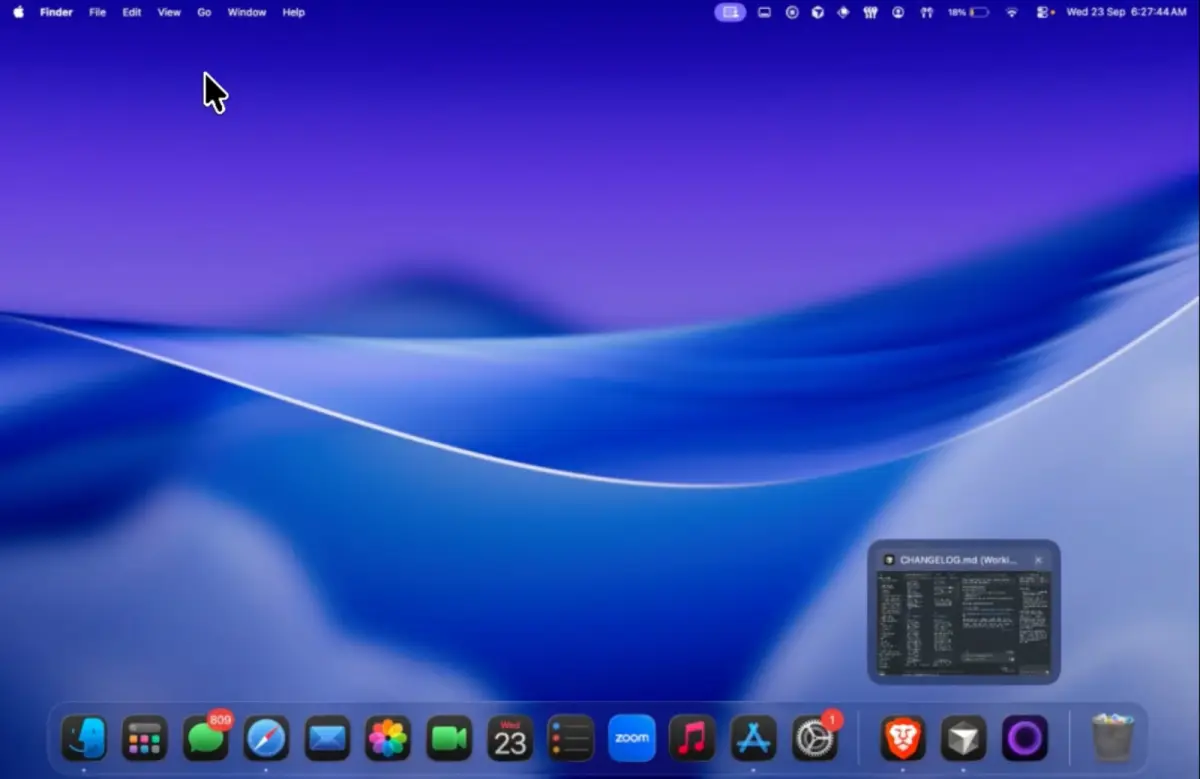
Hover a dock icon and Ordin shows the open windows as live thumbnails. You jump to the right browser tab or editor buffer without cycling through every window in the app.
Why ⌘Tab is not enough
Application switchers treat each app as one tile. Chrome with twelve windows is still one tile. You activate the app, then hunt inside it. Dock previews collapse that into one step: see the windows, click the one you want.
That matters for developers (multiple IDE projects), researchers (dozens of PDFs), and anyone who keeps Slack and mail open beside deep work windows.
What Ordin shows on hover
Ordin captures a thumbnail of each visible window for the hovered app. The popover lists them with a live preview where macOS permissions allow. Click a thumbnail to focus that window. The feature works on Ordin’s extra docks and can extend to the system Dock when previews are enabled in settings.
Screen Recording and Accessibility permissions are required—macOS gates window titles and thumbnails. Ordin asks only when you turn previews on; thumbnails stay on your Mac.
Pair previews with extra docks
Previews shine when your dock already groups the apps you switch between most. Put communication on one monitor with previews for mail and chat; put build tools on another with previews for the IDE and terminal multiplexers.
Read next: how to switch windows of the same app, extra dock on each monitor, or presets and hotkeys.
Live previews are included in Ordin’s 2-day trial.
Download for Mac