Widgets in a Mac Dock
Published · 6 min read
Apple’s Dock holds apps. An Ordin dock holds apps and widgets in the same row: a clock, a file shelf, a mirror of the apps pinned in Apple’s Dock, a Space indicator, and TamaDocky, a small pet you can click. Each widget belongs to that dock. A coding dock and a call dock do not have to carry the same ones.
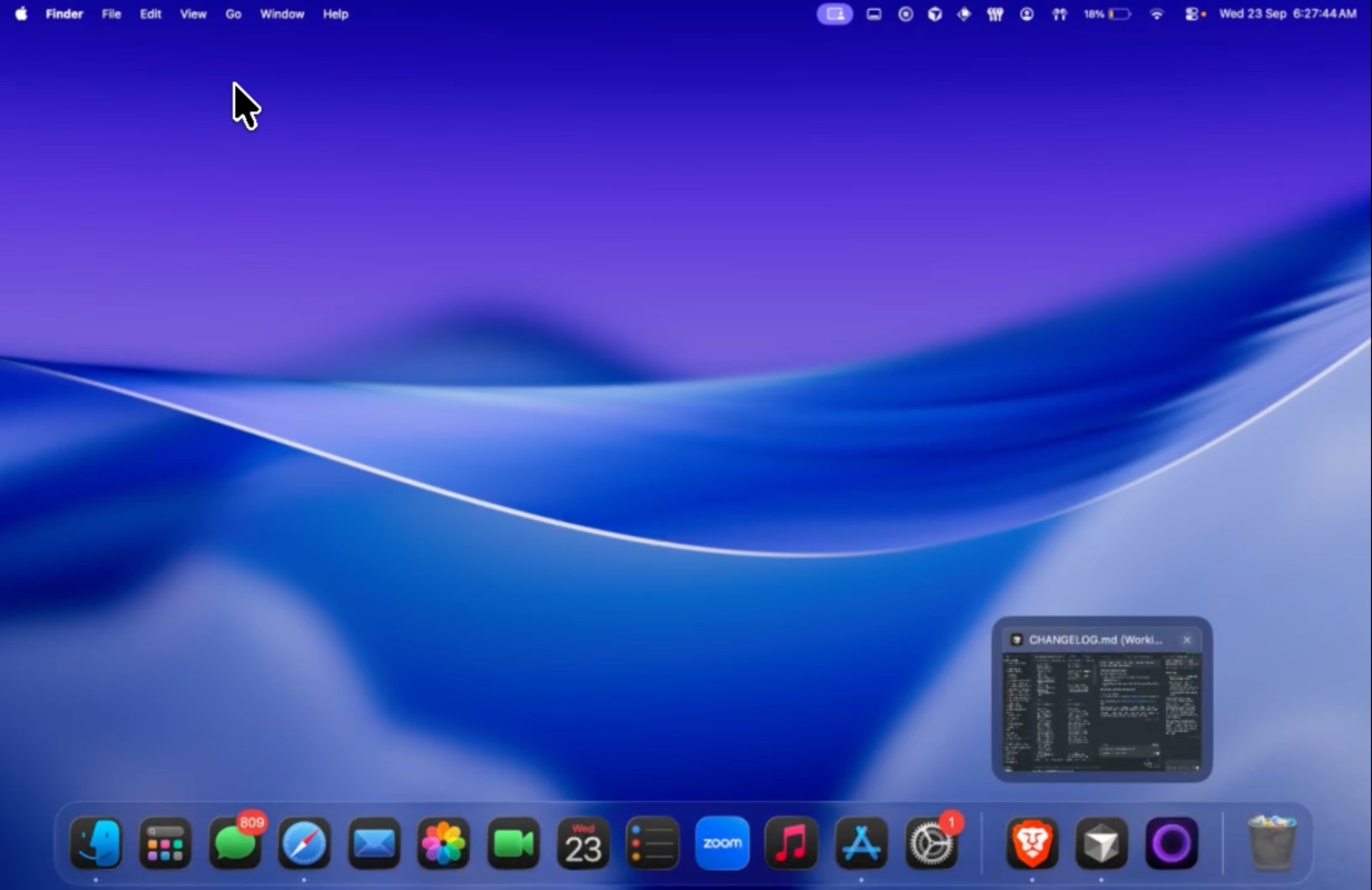
What can sit in the dock besides apps?
Clock
The clock shows the time in the dock row. It can be digital or analog, with the date on or off, and it can use a time zone you choose. Click it and Calendar opens, the same idea as the menu bar clock. Put it on the dock you look at during a call or a timed block of work, not on every strip.
Shelf
The shelf is a tray for files on the way somewhere else. Drag files onto it from Finder. Click the tile to see what is there. It is for the downloads and exports you are moving between apps, so they are not a pile on the Desktop. It is not a second Finder.
Live Dock
Live Dock mirrors the apps pinned in Apple’s Dock onto an Ordin dock. A second display can show that set without you dragging each icon across by hand. Change the pins in Apple’s Dock and the mirror is that set. It sits inside an Ordin dock, which can also hold a few apps that belong only on that screen. One dock per display is covered in a dock on every monitor.
Space indicator
The Space indicator shows which desktop you are on, as a count such as the current Space out of the total, and how many apps are running. It is a glance at Mission Control’s layout from the dock, useful on a machine that keeps writing on one Space and chat on another.
TamaDocky
TamaDocky is a pet that lives in the row. You can name it. Click to pet it. It idles, looks happy when you do, and looks sleepy if you leave it alone. It does not launch an app. It is there because a dock you see all day can hold one thing that is not a tool.
Which widget belongs on which dock
- Calls. A clock. The meeting apps. Nothing else that makes the row long.
- Files. A shelf, plus Finder. The files you are moving stay on that dock.
- The other monitor. A Live Dock mirror, so Apple’s pins are visible there, plus the two or three apps that only exist on that screen. A vertical strip for that column is in a vertical dock on a Mac.
- A desk with several Spaces. A Space indicator on the dock you see most.
A dock that carries every widget plus every app is a crowded Dock with decorations. Keep the row short. Presets can hide the docks you are not using. That setup is specialized docks for each task.
How to add a widget
The 2-day trial includes widgets. It does not ask for an account.
- Download Ordin and drag it to Applications. macOS 13 or later. The same disk image for Apple silicon and Intel.
- Add a dock, or open one you already made, from the menu bar extra.
- Add a widget into that dock’s row and place it between the icons it belongs next to. A clock at the end of a call dock. A shelf beside Finder.
- Leave Apple’s Dock as it is. Widgets are on the Ordin dock. Hovering an app icon still shows live window previews, on that dock and on Apple’s.
After the trial, without a license, two docks remain and presets stop. The widgets on those docks stay with them. A license is $12.99 once for this Mac and keeps a larger set of docks. The terms cover the purchase.
Add a clock or a shelf during the trial. 2 days, no account. $12.99 once keeps the larger set of docks on this Mac.
Download for MacRelated: A vertical dock on a Mac · Live window previews · Specialized docks for each task