A Live Dock Mirror on Every Mac Screen
Published · 5 min read
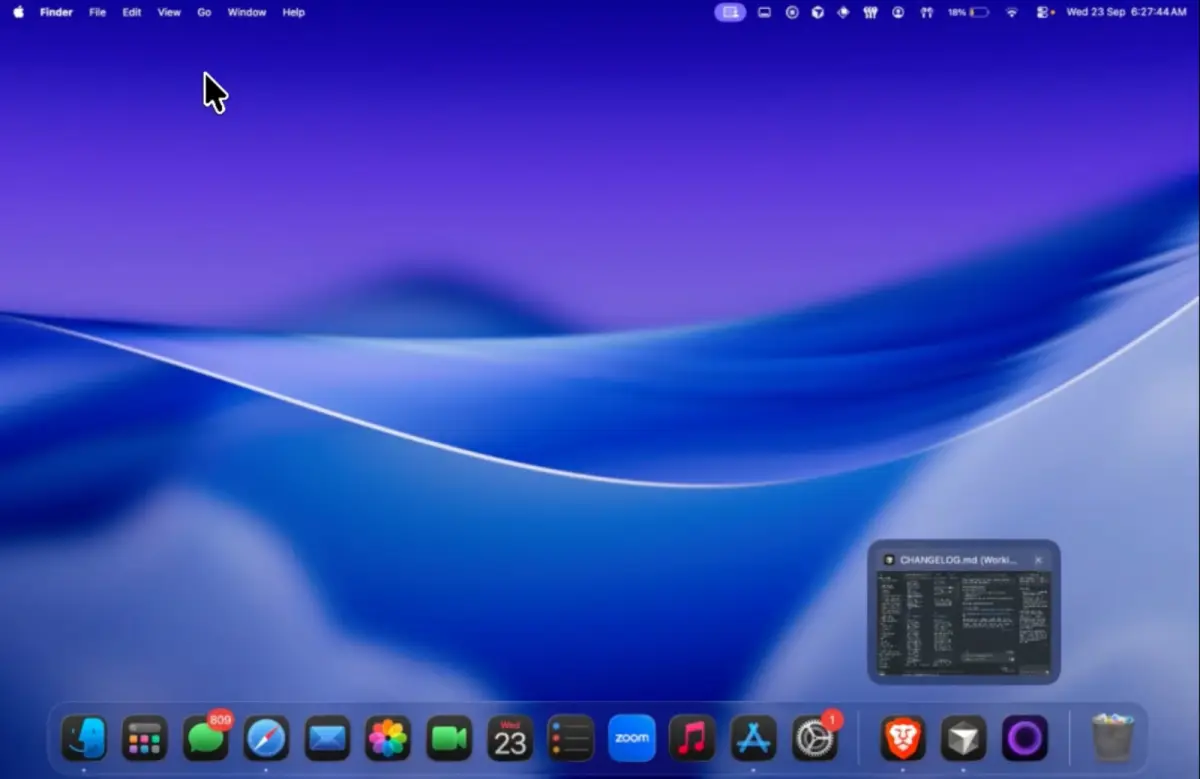
macOS keeps one Dock. When you use two monitors, that Dock follows the pointer or sits on the main display. The apps you pinned are still one list. A Live Dock in Ordin mirrors those pins onto another edge or screen, so the familiar icons are where you are looking. You do not move Apple’s Dock. You do not maintain two separate pin lists by hand.
Why one pin list is still a reach problem
Pinning apps once is fine. Reaching them from the wrong screen is the friction. If Apple’s Dock is on the laptop while you edit on the external display, every launch is a glance left. Moving the system Dock to the external display leaves the laptop empty. “Dock follows mouse” helps some people and annoys others when the bar jumps mid-drag.
Live Dock is a different answer: keep Apple’s Dock where you like it, and put a mirror of those pins on the other screen. Change a pin in System Settings and both places stay in sync.
When a Live Dock helps
- External monitor as the main desk. Laptop Dock stays; Live Dock sits on the right edge of the big screen.
- Vertical side bar. Mirror pins in a tall Ordin dock while Apple’s Dock stays on the bottom. See also a vertical dock on a Mac.
- Same apps, second place. You still want Safari and Mail everywhere, plus a short coding dock with only the tools for that job.
How to add Live Dock
Widgets are in the 2-day trial. No account.
- Download Ordin and drag it to Applications. macOS 13 or later.
- Add a dock on the screen or edge where you want the mirror.
- Add the Live Dock widget into that dock’s row.
- Pin or unpin apps in Apple’s Dock as usual. The Live Dock updates with them.
- Hover an icon for the live window preview before you switch, same as other Ordin docks. More on that in live window previews.
After the trial, two docks remain without a license. Live Dock on those docks stays. A larger set of docks needs the $12.99 lifetime key for this Mac.
Mirror Apple’s pins where you actually look. 2-day trial, no account. $12.99 once keeps the larger set of docks.
Download for MacOr pay $12.99 if you already know you want it.
Related: A dock on every monitor · Can a Mac have two Docks? · Widgets in the dock