Hide the Dock When a Mac Window Goes Fullscreen
Published · 6 min read
A fullscreen window on a Mac already pushes Apple’s Dock off the screen. The Dock comes back the moment the pointer hits the edge, which is how a slide deck or a video ends up with a row of icons across the bottom. An extra dock can leave with that window, or stay on top if you still need the icons.
What macOS already does
System Settings → Desktop & Dock has “Automatically hide and show the Dock.” That setting slides Apple’s Dock away whenever the pointer leaves it, on the desktop and inside normal windows. A fullscreen Space hides the Dock and the menu bar on that display even if automatic hide is off. Move the pointer to the edge the Dock lives on and macOS shows it again, over the window.
That reveal is the complaint. Keynote, a browser video, or a design app that owns the screen is fine until the pointer drifts to the bottom and the Dock covers the last inch. Turning automatic hide on makes the Dock leave ordinary windows too, which is a bigger change than most people wanted.
macOS still has one Dock. Hiding it does not put a second set of icons on the other screen. If the laptop has the Dock and the external display is where you present, that display stays empty. The layout for that desk is a dock on the external monitor.
Hide the extra dock only while the window is fullscreen
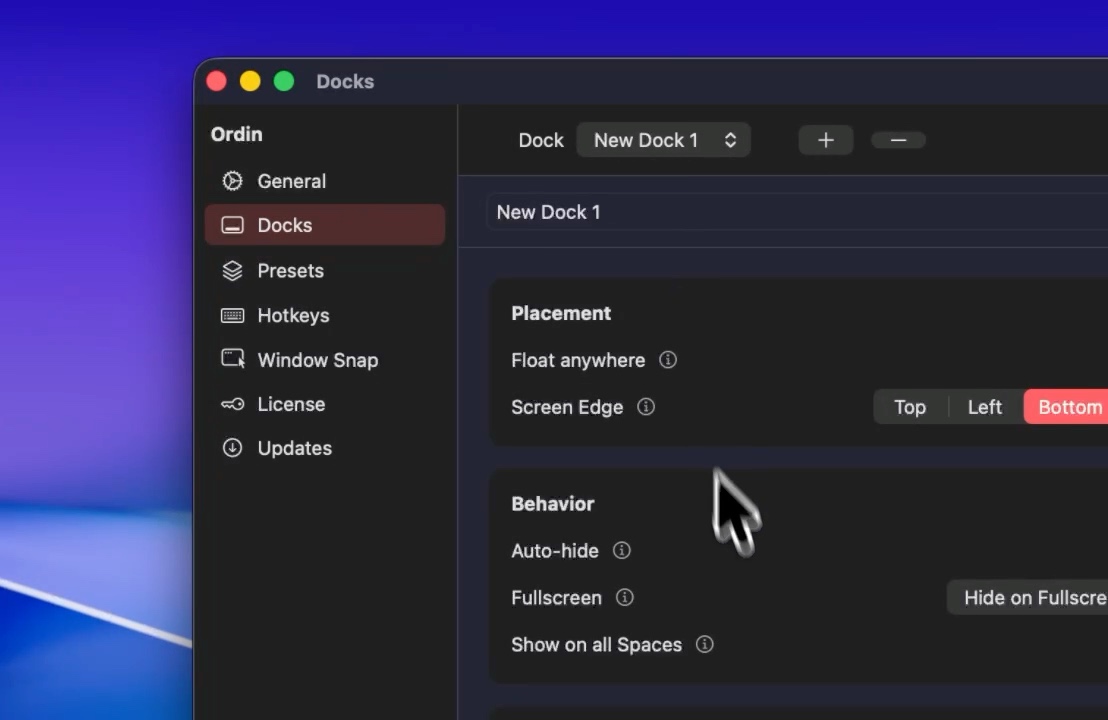
Ordin draws its own docks beside Apple’s. Each one has a Fullscreen control in Settings → Docks. The default is Hide on Fullscreen: when an app owns that dock’s screen, the dock tucks away. Leave fullscreen and it comes back. Always Visible draws the same dock on top of the fullscreen app, for a reference strip you still want during a fullscreen editor.
The choice is per dock. The strip on the laptop can stay visible while the strip on the display you present from hides. Apple’s Dock keeps the behavior you set in System Settings. Ordin does not replace it.
Auto-hide is the everyday version
Fullscreen is one moment. The rest of the day the dock can still sit on top of a window that is merely large. Auto-hide, in the same Docks settings, slides that dock off its edge when the pointer leaves it.
- Hide Delay is how long the pointer rests outside the dock before it leaves. The slider runs from 0.1 to 2.0 seconds. The starting value is 0.4 seconds, long enough that a pass across the dock does not dismiss it.
- Stay visible on desktop keeps the dock out when you are on the desktop. It still hides while another app is in front.
- The pointer on the screen edge brings it back. A floating dock hides toward the Screen Edge you picked: Top, Left, Bottom, or Right.
A vertical dock on the side uses less of a wide screen than a second row along the bottom, and it hides toward that side. The placement note is a vertical dock on a Mac.
Try it on the window that gets covered
Download Ordin and put one dock on the screen where a fullscreen window bothers you. Open that app fullscreen. Hide on Fullscreen should take the extra dock with it. If the icons are still in the way, they are Apple’s Dock: use Automatically hide and show the Dock, or move that Dock to an edge you do not brush during the talk.
If you wanted the icons during the fullscreen app, switch that dock to Always Visible and leave the others on Hide on Fullscreen.
The trial is 2 days, with no account. Two extra docks remain afterward without a license. Presets and the larger set need the $12.99 license for this Mac. Whether that payment is worth it depends on the screen that had no icons, which is the subject of is a second Mac dock worth $12.99.
Open one fullscreen window. If the extra dock leaves with it, you have the behavior. The license is $12.99 once if you keep the docks.
Download for MacOr pay $12.99 if you already know you want it.
Related: A dock on the external monitor · A vertical dock on a Mac · Is a second dock worth $12.99?