Why the Mac Dock Keeps Jumping to the Other Monitor
Published · 6 min read
You are mid-edit on the ultrawide. You flick the pointer to the bottom edge for an app. The Dock is gone—it is on the laptop again. That is not a glitch. macOS ships one Dock. On two displays, that one strip follows the edge you last called it to. If you build, design, or take calls on the big screen, you need apps that stay there—not a Dock that wanders.
What is actually happening
System Settings → Desktop & Dock still controls a single Dock. Left, bottom, or right. Auto-hide. Size. There is no “show on every monitor” checkbox, and no “lock to Display 2.” When Displays have separate Spaces is on, each screen can show its own windows and menu bar behavior, but the Dock remains one object. Move the pointer into the Dock edge on another screen, and the icons move with you.
So the Dock is doing what Apple designed: follow the active edge. Your muscle memory wants a launcher that never leaves the monitor where the work is. Those are different goals. The overview of why a Mac still has only one system Dock is can a Mac have more than one Dock.
What will not permanently fix it
- Dragging the Dock in System Settings. You still have one Dock. You only changed which edge it prefers on the screen it currently occupies.
- Auto-hide. Hides the same Dock. It still jumps when it reappears on the other display. Pairing auto-hide with a second strip is a different article: auto-hide without losing your apps.
- Closing the MacBook lid. Clamshell mode can park the Dock on the external, until you open the lid again for a call or a reference window.
- Turning Displays have separate Spaces off or on. Useful for Mission Control. Not a second Dock.
If you came from Windows and expected a taskbar on every screen, that mismatch is spelled out in a taskbar on every screen, on a Mac.
The fix that matches how you work
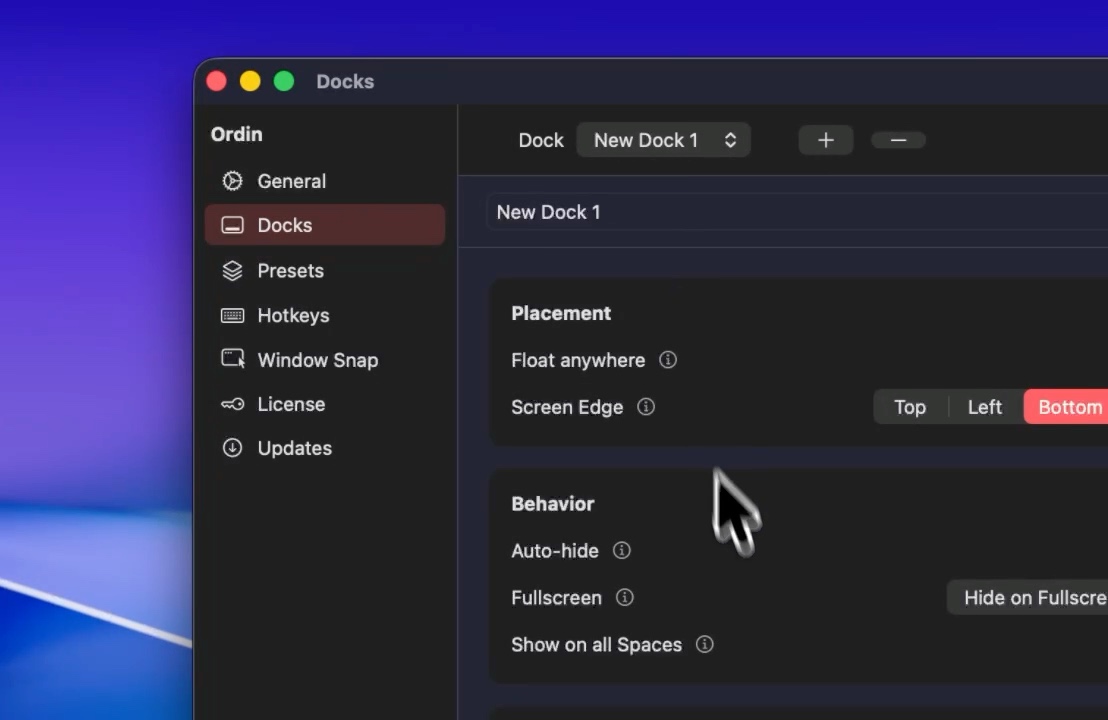
Leave Apple’s Dock alone. Add a second dock that is pinned to the display where you actually work. Ordin binds that dock to a screen, so coding tools, design apps, or meeting apps stay on the ultrawide while Apple’s Dock can still wander on the laptop.
- External monitor dock: pin the apps for the job on that screen—editor, Figma, browser, Zoom. Bottom or side edge. Live previews still work on hover.
- Laptop dock (optional): a short strip for Mail, Messages, or whatever you only open on the built-in display.
- Apple’s Dock: keep it short as the system row, or auto-hide it if the jumping still annoys you.
People who mix code, design, and calls can split those into named docks and switch with presets—see the setup for code, design, and calls. The step-by-step for one external display is put a dock on your external monitor. For a bar on every screen, use a dock on every monitor.
Who this is for
This post is for the dual-monitor ICP: MacBook plus one or two externals, attention on the big panel, Dock that keeps teleporting away. Freelancers and indie makers who ship and take calls on the same desk feel it every afternoon. If you use one screen and the Dock already sits under your windows, you do not have a jumping problem—skip the license.
Prove it in two days
- Download Ordin. macOS 13 or later. No account for the trial.
- Add one dock. Assign it to the external monitor. Pin only the apps you opened on that screen yesterday.
- Work a normal build or design block. Notice whether you still chase Apple’s Dock to the laptop.
- If the pinned strip earns its place, keep it. After the trial, two docks remain without a license; presets and a larger set need $12.99 once for this Mac. Checklist: buy after the free trial.
Stop chasing the Dock across monitors. Pin a second strip to the screen you work on. 2-day trial, no account. $12.99 once if you keep it.
Download for MacOr pay $12.99 if you already know you want it.
FAQ
Why does the Mac Dock jump to another monitor?
Because there is only one Dock, and on multi-display desks it can move to the screen where the pointer hits its edge.
Can I lock Apple’s Dock to my external monitor?
Not permanently in System Settings. Add a second dock that stays on that display instead.
Will Separate Spaces fix it?
No. That setting changes Spaces and screens. It does not create a second Dock.
Is this the same as “Dock on every monitor”?
Related. Jumping is the symptom when one Dock follows you. A dock per display is the layout when you want icons waiting on every screen.
Related: Dock on the external monitor · Dock on every monitor · Can a Mac have more than one Dock?