MacBook Clamshell Mode: Put the Dock on Your External Display
Published · 5 min read
Clamshell mode turns the MacBook into a desktop brain with the lid shut. The external monitor becomes your world—except the Dock still behaves like a laptop accessory. Pin a second dock to the big screen so launchers live where your eyes already are.
What clamshell changes
With the lid closed and power connected, macOS drives the external display. Apple’s Dock may sit on that screen—or jump back when you open the lid for a call. System Settings still gives you one Dock, not one per display. The walkthrough for dual monitors is a dock on the external monitor.
A dock that stays on the external
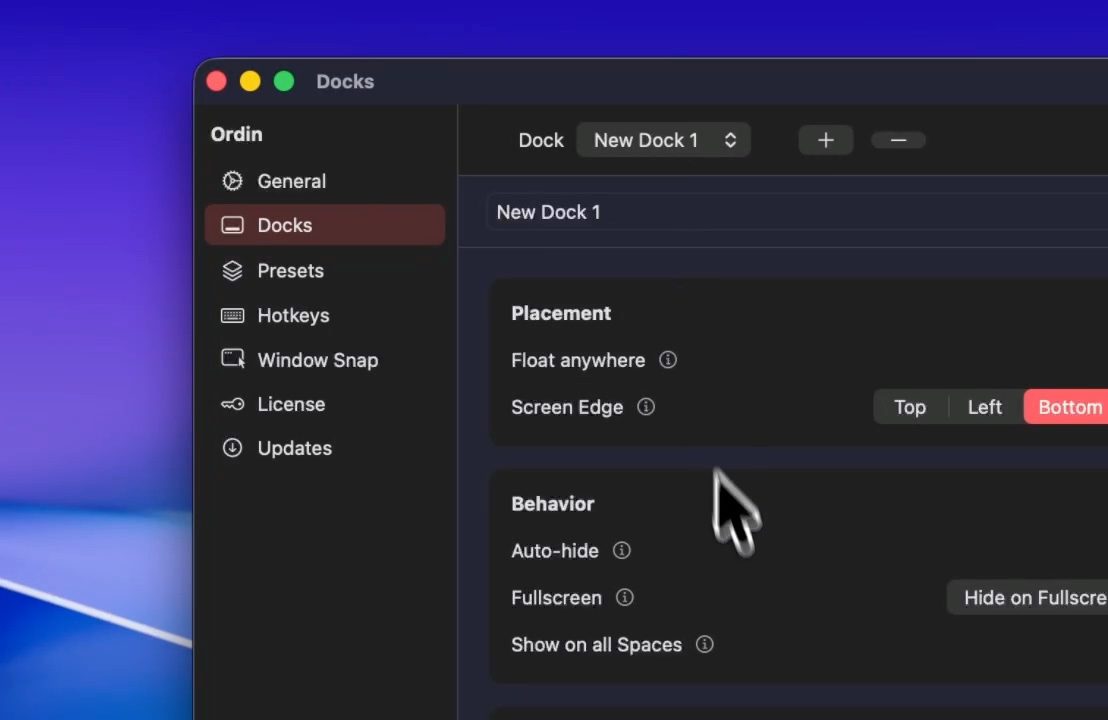
Add an Ordin dock assigned to the external monitor. Pin the apps you open on the ultrawide: editor, browser, design tools. Keep Apple’s Dock short or auto-hidden on the built-in display when the lid is open. When the lid closes, your work dock remains on the display that matters.
Quick setup
- Connect power and the external display. Close the lid if you prefer clamshell.
- Add an Ordin dock. Place it on the bottom or side of the external.
- Pin six to eight apps you use on that screen. Skip “everything you own.”
Try the layout on your desk for two days. No account. $12.99 once if you keep it.
Download for MacFAQ
Does clamshell mode move the Mac Dock to the external monitor?
It can, but Apple’s Dock is still one strip that may move when you open the lid or hit an edge. A pinned Ordin dock stays on the display you assign.
Do I need Ordin in clamshell mode?
Only if the Dock is not where you work. One screen, Dock already under your windows—skip it.
Related: External monitor dock · Dock jumps monitors